Store owner
End user · works from templates
I just want my checkout to look like my brand and go live.
- Guidance
- Simple styling
- Quick mobile preview
- Rarely touches layout
Designs forBasic mode
Redesigning the Checkout Champ page builder, so store owners can build a checkout without code and template creators get the control they asked for.
Two very different people build on the same canvas. I redesigned the builder so a store owner can finish a page in minutes, and a template creator still gets precise control.
Checkout Champ lets Konnektive's customers create, edit and publish sales funnels and checkout pages, with Konnektive CRM handling products and payments behind them. Its page builder ran on GrapesJS, which made the experience hard to customise and left the interface looking dated.
In interviews, most users rated the old builder 4 to 6 out of 10. Store owners found it confusing and lacking guidance. Template creators felt boxed in: no free positioning, no way to hide an element on mobile, and settings buried in odd places.
The brief was to keep every existing feature, modernise the interface, and make room for new ones. A technical goal sat underneath: build each page's script from only the features it uses, so live pages load faster.
How might wemake one builder feel simple for a store owner and powerful for a template creator, without splitting it in two?
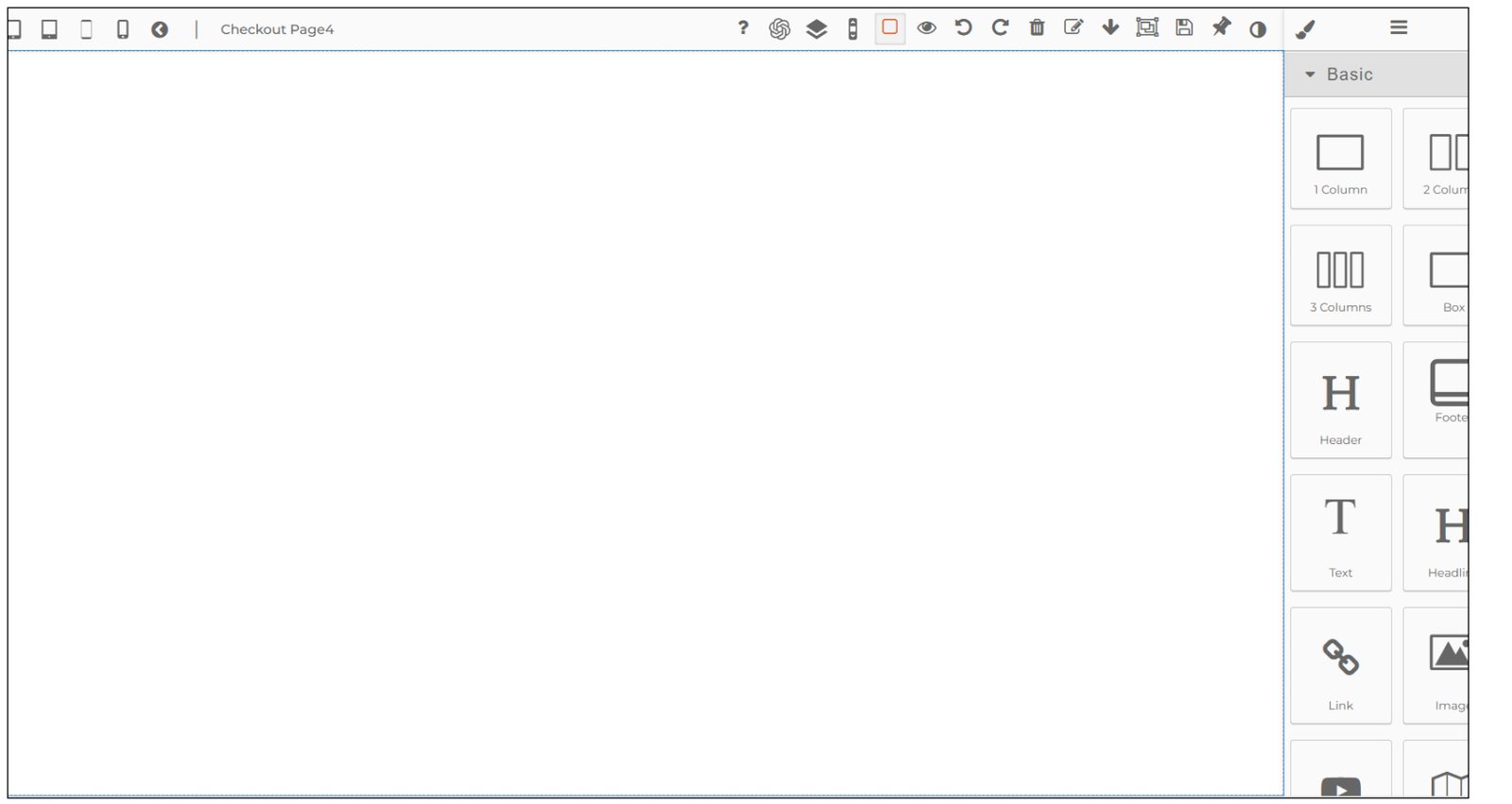
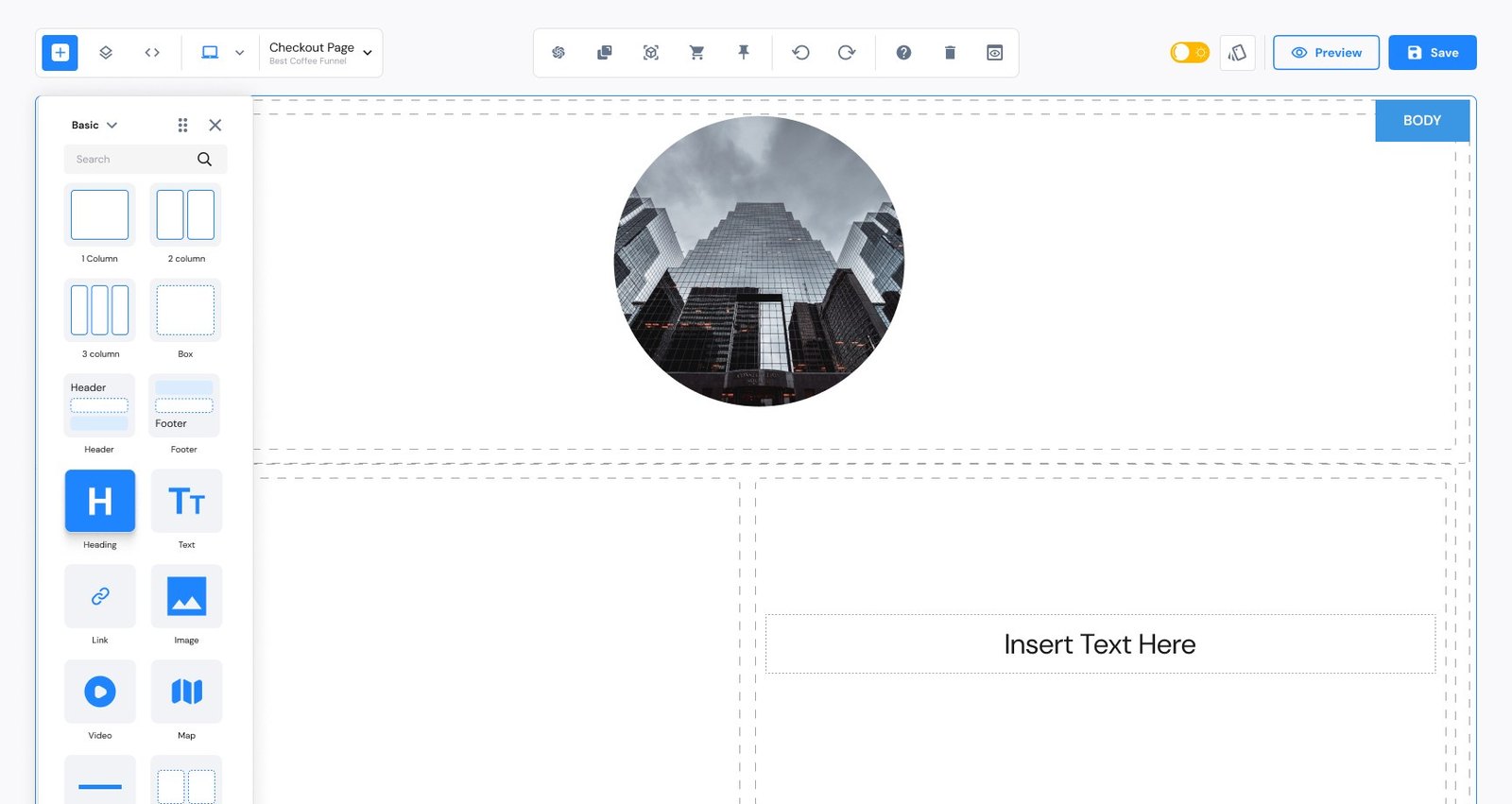 BeforeAfter
Drag to compare the old GrapesJS builder with the redesigned one.
I started by using the old builder myself, trying every feature and noting where it broke down. Then I interviewed stakeholders and users, both store owners and Konnektive's internal template creators, and watched them work through a set of tasks.
End user · works from templates
I just want my checkout to look like my brand and go live.
Designs forBasic mode
Internal user · builds the templates
Let me put this exactly where I want it.
Designs forAdvanced mode
Task-based testing. I gave people indirect tasks on the old builder and noted their actions and pain points:
New users clicked around icons with no labels and no guidance on what to do first.
Template creators wanted to place elements freely, not only in fixed slots.
There was no way to hide a desktop banner on mobile, or adjust the layout per device.
Style options were scattered, with no split between simple and advanced controls.
I compared the three across usability, customisation, e-commerce, SEO and mobile. Wix is easy but overwhelming, Shopify is strong on commerce but rigid on design, Webflow is powerful but daunting for beginners. Konnektive's gap was clear: checkout-first, with simple and advanced modes in one tool.
| Criteria | WixEasy, but overwhelming | ShopifyStrong commerce, rigid design | WebflowPowerful, daunting for beginners |
|---|---|---|---|
| Ease of use | Highly intuitive drag-and-drop builder, wide range of design elements. Can be overwhelming, with numerous options and occasional performance issues. | Clean, professional interface designed for e-commerce. Steeper learning curve for new users, less flexible design. | Robust functionality with a clear, structured interface. Complex settings can be daunting for beginners. |
| Customisation | Extensive options, many templates and design flexibility. Heavy customisation can slow pages down. | Good customisation through themes and apps, tailored to commerce. Limited raw design flexibility compared to Wix. | Highly customisable, with flexible product options. Less free-form than Wix for quick visual changes. |
| E-commerce | Solid features for small to medium businesses. Not as robust as dedicated commerce platforms. | Best-in-class commerce tools, app store and integrations. Higher costs for advanced features and apps. | Basic commerce features, easy for beginners. More complex setup and management. |
| SEO & marketing | Good built-in SEO tools, easy to use. Room to improve on advanced SEO. | Strong SEO and marketing, with social and email integration. Some advanced features need paid apps. | Advanced SEO and extensive marketing tools. More complex to set up and use. |
| Mobile | Good mobile optimisation and a mobile editor. Some templates need manual mobile fixes. | Excellent responsiveness and mobile-optimised themes. Limited customisation on mobile. | Strong mobile optimisation, responsive themes. Design changes can be hard to control on mobile. |
StrengthWeakness
A checkout-first builder with a simple mode for store owners and an advanced mode for template creators, in one tool.
The stakeholder wanted more of the canvas visible. The wireframes moved step by step from a fixed left rail to small, movable panels that float over the page, so the store's own design gets the space.
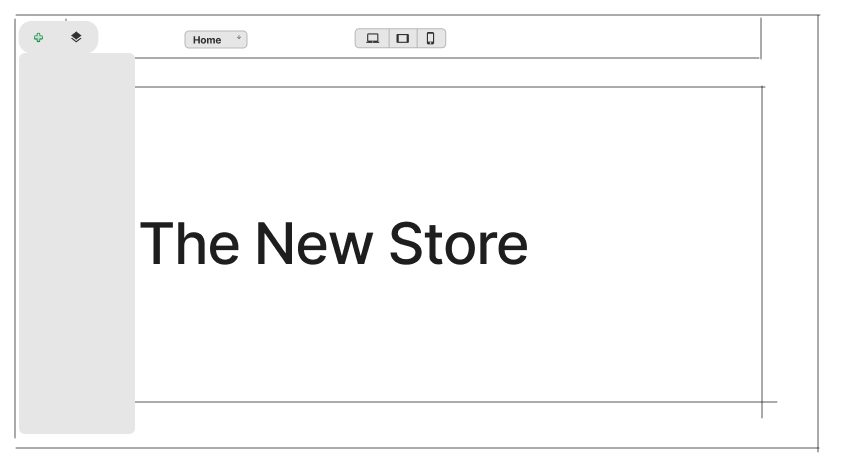
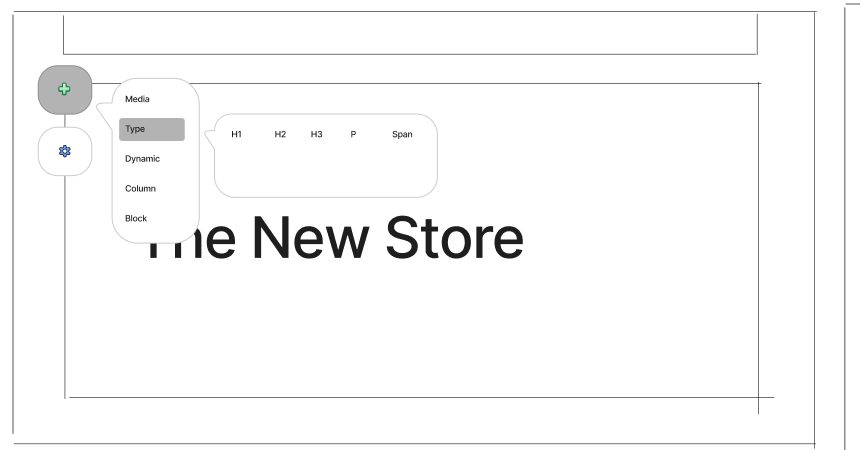
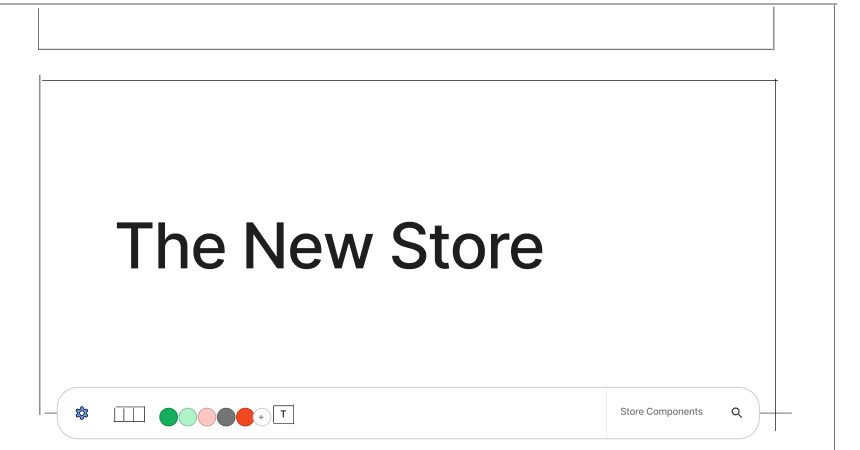
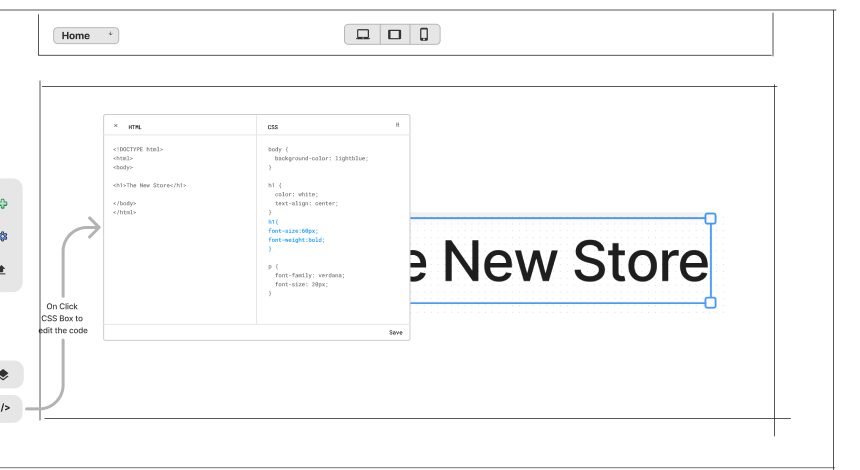
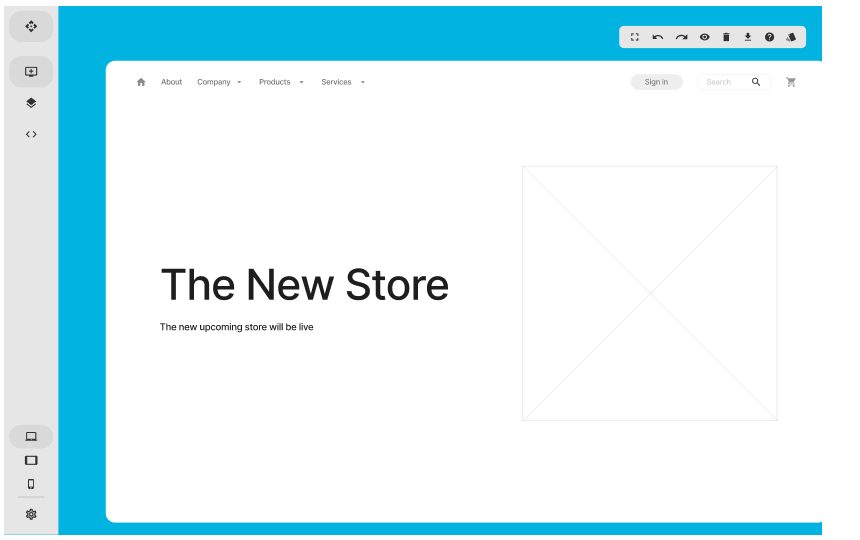
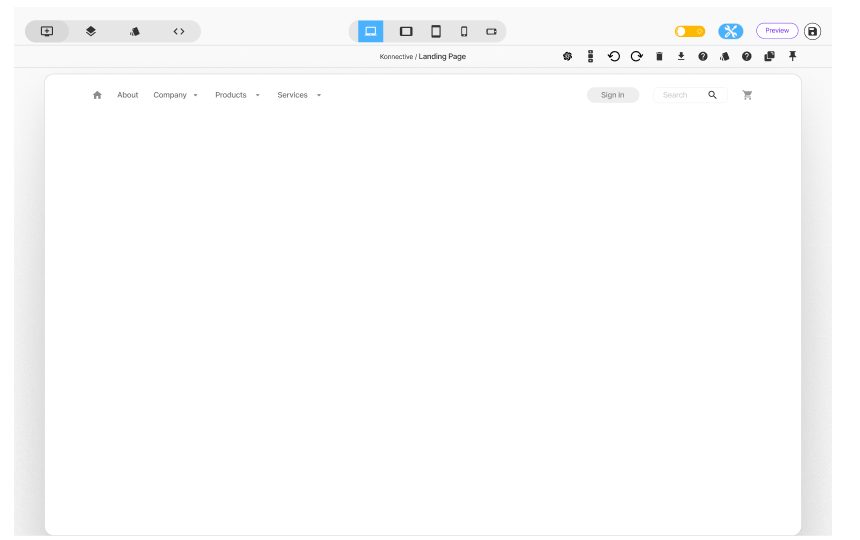
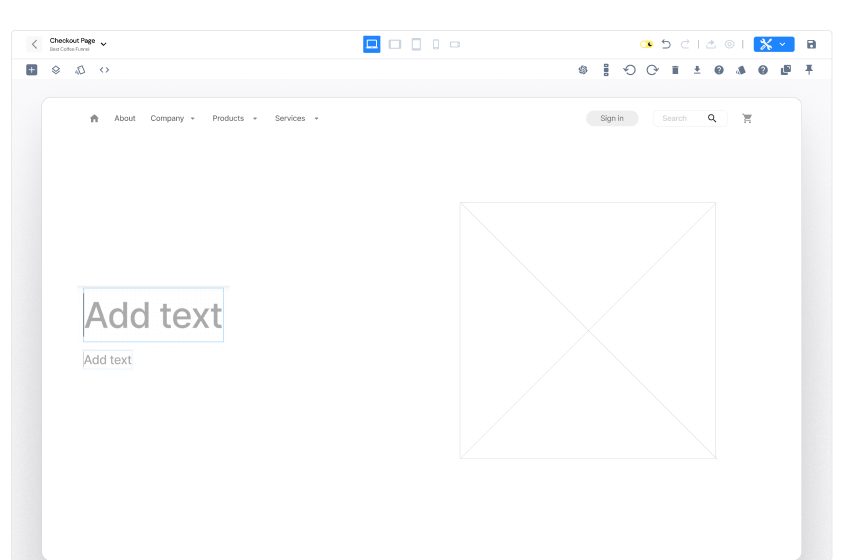
Midway, a new requirement arrived: the old builder had to stay live alongside the new one, and users would move over gradually. I designed two ways to handle it.
Why: people meet the new builder at the moment they need it, on a page they already know. One "2.0" badge replaced the two version tags, and nothing is lost by trying it.
Build a checkout page for Best Coffee Funnel, start to finish. Skip the tour, drag in a two column layout, drop the checkout form into it, style the heading, check it on mobile and publish. Follow the glowing spot, or tap anywhere to see what else you can press. Drag blocks from the panel onto the page.
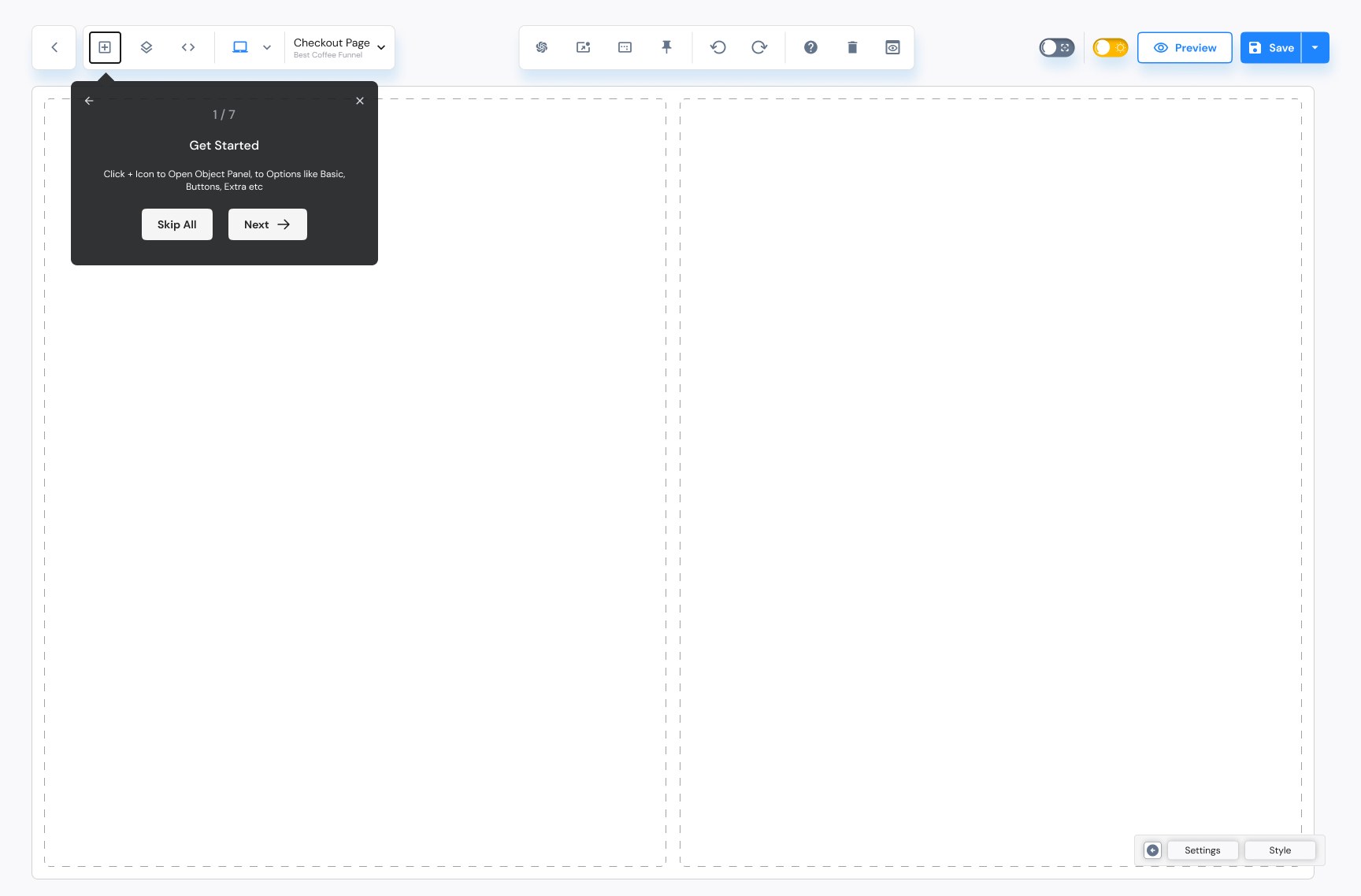
Built from the final Figma screens. The page content is placeholder, as in the original designs.
A first-run tour, labeled blocks in groups, a Basic style panel and one-click device previews.
Free positioning, a layer tree, an Advanced style panel, per-device visibility and the code editor.
One panel, two depths. Store owners stay in Basic; template creators open Advanced when they need control.
For store owners: the few settings that make a checkout look on-brand.For template creators: the detail they need to build pixel-exact templates.
Dismissible tooltips walk a new user through blocks, canvas, settings and styles.
Elements snap to the layout or sit exactly where a creator wants them, the most requested change.
Switch from desktop to small mobile in one click, and hide an element where it doesn't belong.
Carousels and payment buttons like Apple Pay and Google Pay get global settings, set once and reused.
A theme toggle in the top bar for people who build pages for hours at a time. Try it.
user groups served by one builder
device sizes to preview and adjust
steps in the first-run tour
Most testers found the redesigned interface easy to navigate, and liked the hover descriptions on each tool, which the old builder didn't have.
Users built a page quickly, though some needed guidance to reach the advanced options.
Users wanted payment options closer to hand, so we added payment buttons with Apple Pay and Google Pay ready in one click.
Feedback asking for more control led to the Advanced Style Manager, joined with the basic one.
The new builder runs alongside the old one while customers move over gradually.
One tool, two depths. Splitting Basic and Advanced served both groups without making two products.
Settings and Style belong higher up. Testing showed people looking for them at the top, and they use free positioning so often it should sit closer to the element. I argued for moving the panels up during the project; the team is now working on that placement.
Ask about migration early. Running both builders side by side arrived late. Next time I'd ask how users move from the old tool to the new one on day one.